

Hi Andrew,
thanks for your question and sample. In general it´s not enough to simply AllowDrag and AllowDrop to make Drag´n´Drop work.
You need to handle several events, that Luca has described here: https://wisej.com/support/question/listview-details-drag-drop
Please let me know if you need a working sample for dropping from a listbox and copying to the CKEditor.
Best regards
Frank
Hi Adil,
That’s correct. When you create a Wisej control, it is not rendered on the client until the first time it is made visible. The reason is that many apps we worked with have a lot of controls in tab pages, or in hidden panels that don’t need to be created on the client until later on and sometimes never. The control is fully created on the server though.
You can force it by calling CreateControl().
Also, you don’t need a control to execute JavaScript. You can use Application.Call() and Application.Eval() at any time.
Best,
Luca
Hi Luca,
The self-hosting and stand-alone techniques work really well, impressive!
Just one question, although I’ve seen the mention of using nginx as revese proxy to enable the self-hosting to work under linux – what setup is required for this to work?
In other words last time I checked mono was still not supporting websockets, therefore can you elaborate (or link) to the steps necessary to get this setup running under a recent linux distribution?
Apart from the linux issue, loving the self-hosting. As with WiseJ in general, just seems to work :o)
Regards,
Mark
Please note that you can also define custom animations in addition to the build in animations.
To add / modify a custom animation, click on the Animation Extender and then edit the CustomAnimations property collection editor.
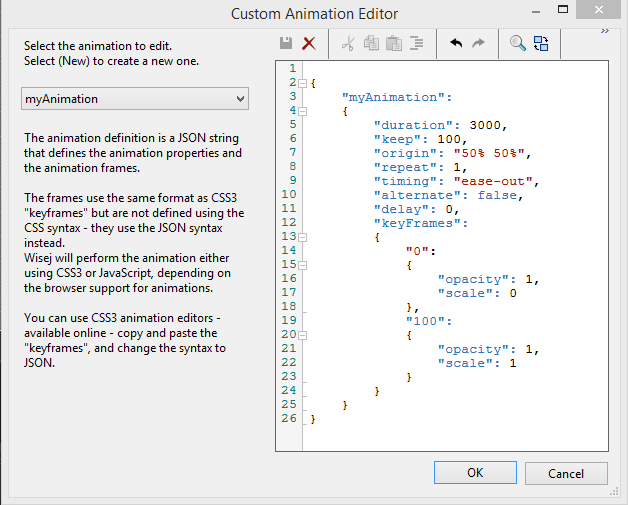
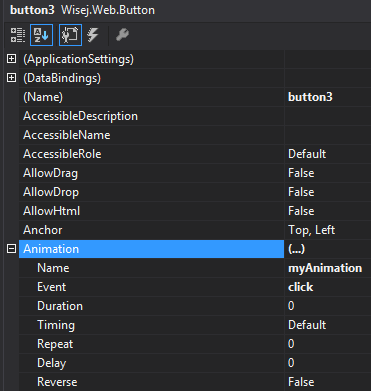
To use this custom animation definition, just type its name (myAnimation) in the Animation.Name property of your object:
Best regards
Frank
Still checking this issue. Sorry for the delay.
Hello Wilfred,
The problem is caused by the order of the bindings. If you bind the list first and the selected value second it works fine.
this.ComboBox.DataBindings.Add(new Wisej.Web.Binding(“DataSource”, this.bindingSource1, “KnightsList”, true, Wisej.Web.DataSourceUpdateMode.OnPropertyChanged));
this.ComboBox.DataBindings.Add(new Wisej.Web.Binding(“SelectedValue”, this.bindingSource1, “KnightID”, true));
As it is now, you are binding the selected value first, so when you change the datasource and the bindings are refreshed, the selected value is updated first but the new key doesn’t exist in the list so it’s reset to the first. If you bind the list first, then the selected value will be found and it all works.
This is related to the “circular” binding, where the data source contains both the selected value and the lookup list.
HTH
Best,
Luca
Hi Alex,
Yes you can change the basic fonts, colors and images in a mixin. Fonts have to be defined as a font. You can’t just change the size. However, you can set the font-size css property as a CSS property.
You can also create new fonts and use them by name, like “LargeFont”, “PanelTitle”, etc.
In the designer or in code you can refer to theme fonts using the name with the @ prefix. And you can clone a font and change the styles and/or size using the standard System.Drawing.Font class.
The designer will also let you reuse a font and simply change the size or style, the editor will create the new font statement for you.
HTH
Best,
Luca
Hi Francis,
I have put together a small sample, that you can download here: http://wisej.s3.amazonaws.com/support/attachments/DgvSortFilter.zip
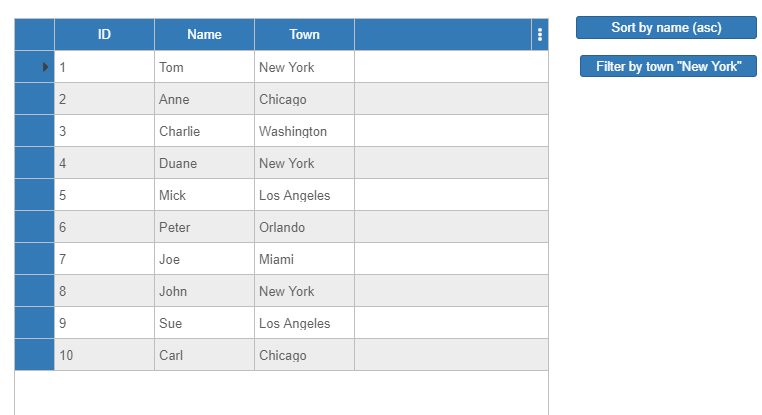
The datagridview is populated from a BindingSource created by a DataTable. All columns can be sorted by default by clicking on its column header.
In my sample I want to prevent the ID column from being sorted by the user with the following code:
this.dataGridView1.Columns[“ID”].SortMode = DataGridViewColumnSortMode.NotSortable;
Then I added 2 buttons to show how to sort / filter by code:
this.dataGridView1.Sort(dataGridView1.Columns[“Name”], System.ComponentModel.ListSortDirection.Ascending);
And filter the BindingSource that will automatically update the bound datagridview:
bs.Filter = “Town = ‘New York'”;
Hope that helps.
Best regards
Frank
Hi Faith,
yes, this is very easy with Wisej:
Just drop the Animation extender from the Tool palette to your container (page/window/desktop).
Then the container and all its children get a new property collection called Animotion:
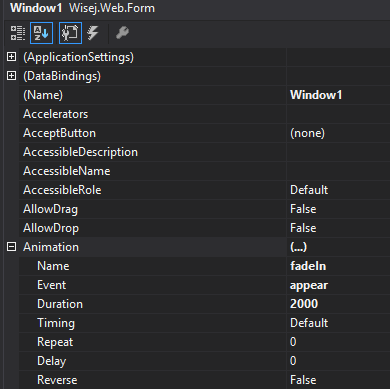
Here you can setup various effects, duration and the event it is linked to.
I have put together a simple sample where the window fades in on creation and the buttons show 2 different effects when they are clicked.
You can download it here: http://wisej.s3.amazonaws.com/support/attachments/Animation.zip
Hope that helps.
Best regards
Frank
Thanks Andrew,
apparently it only fails in the designer but works ok in runtime. That´s probably why it slipped through the tests.
I have logged issue WJ-8340 for it and we will inform you when it´s fixed.
Best regards
Frank
Hi Thomas,
thanks, I could reproduce and logged issue #WJ-8339 for it.
We´ll keep you updated when a fix is available.
Best regards
Frank
I know Wisej, I know it’s rich and powerful, I know it’s easy to work with. Nevetheless I’m amazed there are so many different ways to do big visual changes in a very localized context, with so little effort.
The issue here is Frank isn’t always at hand and there isn’t (yet) a tutorial for this kind of knowledge – something like local visual style changes.
Hi again,
I still have some issues with the databound ComboBox. Attached a modified sample.
The selection list in the ComboBox is right. But the selection does not work.
Click on “Get record 1”. “Mordered” is shown as selected that is right. Now, click on “Get record 2”. “Tannhauser” is selected. Wrong it should be “Vecelin”.
End execution and start the project again. This time click on “Get record 2” first. “Vecelin” is selected. Thats right. Now, click on “Get record 1”. “Uther” is shown as selected. It should be “Mordered”.
Uncommenting //ComboBox.DataSource = head1.KnightsList; and //ComboBox.DataSource = head2.KnightsList; in the code-behind seems to make it work. But it doesn’t make sense to me.
Best regards,
Wilfred
Hi Ulisses,
there are actually more ways to add the shadow and I have revised the sample. Find an updated version here:
http://wisej.s3.amazonaws.com/support/attachments/ShadowPanel2.zip
When you add a StyleSheet extender to a container (page/window), all controls get a new property CssClass that can be set directly in the designer.
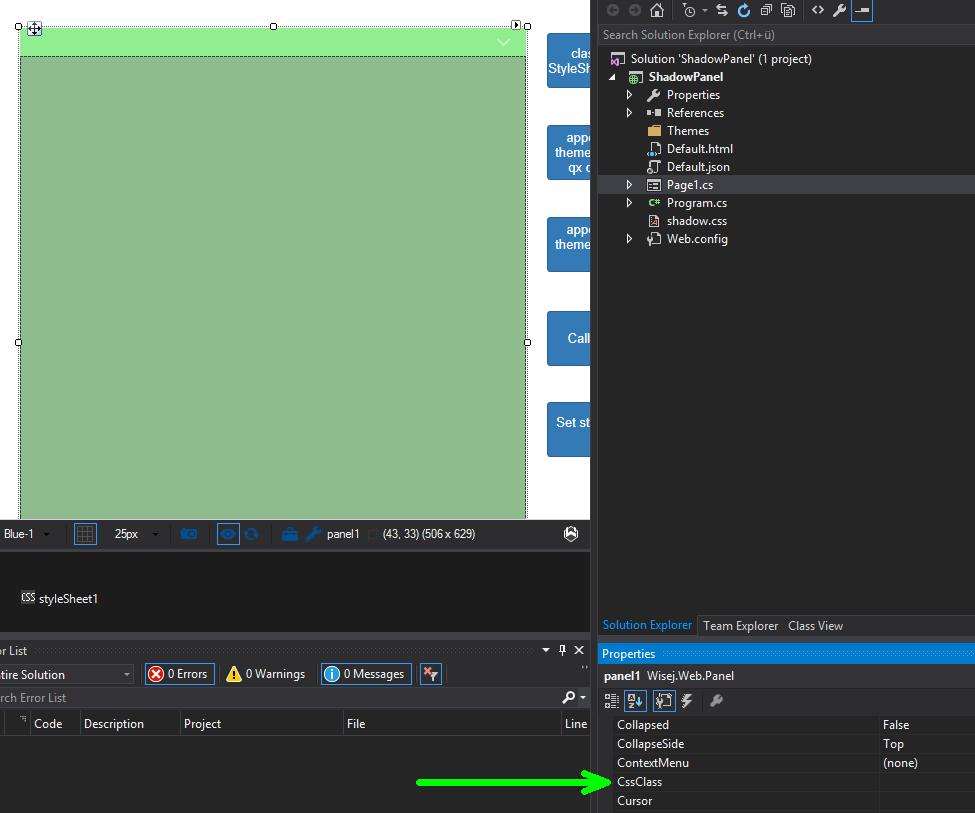
So you could use greenshadow here and the panel will be shown with the shadow border.
Internally this code gets added to InitializeComponent:
this.styleSheet1.SetCssClass(this.panel1, “greenshadow”);
Since for this sample we don´t want to have the panel displayed with the shadow border on create, I removed that property value again and placed that call under Button1.
Another option is to use a css file that is referenced in default.html:
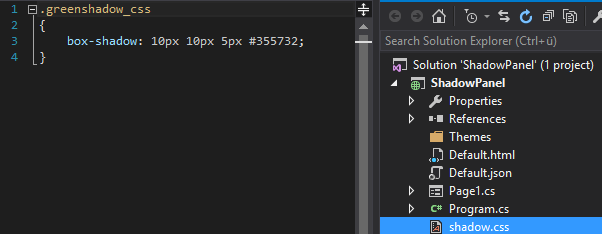
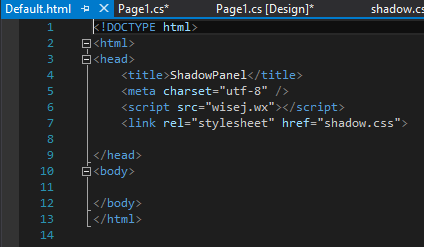
Please note that I named the style greenshadow_css here to distinguish it from the style defined in the stylesheet extender.
Button 5 now uses the following code to assign the style:
this.panel1.Eval(“this.getContentElement().addClass (\”greenshadow_css\”)”);
Best regards
Frank
Hi Ulisses,
please find a sample here that shows how to add a shadow to a panel in 4 ways:
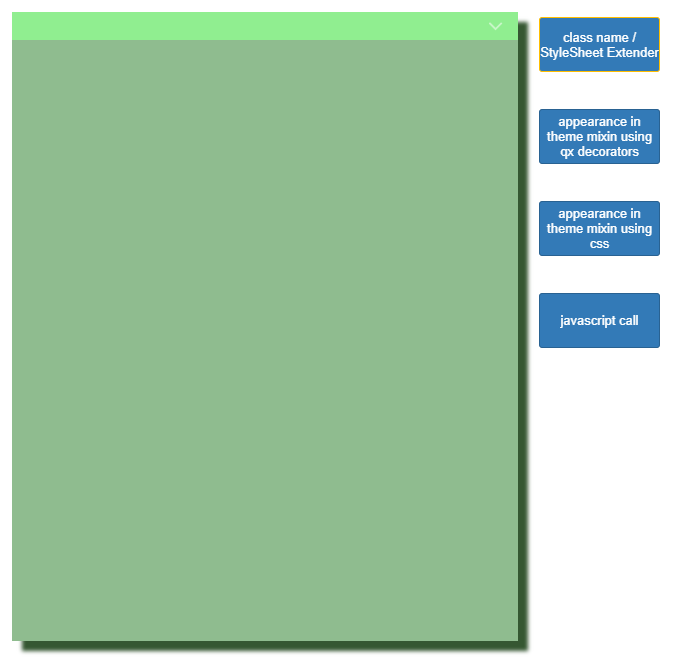
http://wisej.s3.amazonaws.com/support/attachments/ShadowPanel.zip
(Setting the properties Horizontal-Shadow, Vertical-Shadow, Blur distance and color).
We then assign the class like this:
this.panel1.Eval(“this.getContentElement().addClass (\”greenshadow\”)”);
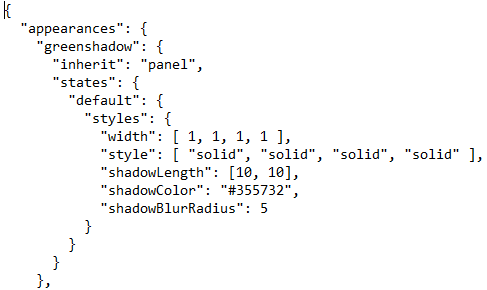
This appearance key is then assigned with the following code:
this.panel1.AppearanceKey = “greenshadow”;
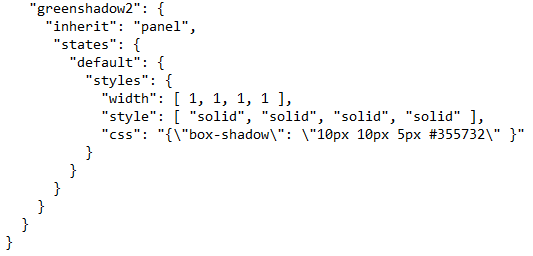
This is assigned the same way as in 2):
this.panel1.AppearanceKey = “greenshadow2”;
this.panel1.Eval(“this.getContentElement().setStyles ({ \”box-shadow\”: \”10px 10px 5px #355732\”})”);
Please let us know if you have any questions about the sample or any of the four ways to set the shadow to the panel.
Hope that helps.
Best regards
Frank
It depends on how many controls you are loading on startup and if the core libraries are already loaded.
For example, loading this: http://demo.wisej.com/ProgressSample.html from a server across the atlantic on a slow connection I get about 6 seconds to load the javascript library the first time (1.3MB) and 200ms to start the app. On subsequent loads I get 1 second to reload from cache, and the same 200ms to create the controls.
If your app creates a lot of controls on the first screen then you have that time added to the load time. Look at the network tab using F12 on chrome to see what takes 10 seconds. Maybe the cache is turned off. Also look at how many controls you are creating at startup, if it’s about 100 then you start seeing some slow down because of browser rendering.
Let me know. And in case you have a link for us to try, send it privately to support@wisej.com.
Best,
Luca
You can:
1- Use the StyleSheet extender. It lets you add CSS rules to the extender, or reference a CSS file with rules. It then adds a new ClassName property to all controls on the container. I.e. add a CSS rule “.green-shadow: { …. }” then add the class name “green-shadow” to the controls that you want to use the green shadow on.
2- Add an appearance key on a mixin theme. But in this case you have to extend a specific key. For example, add an appearance key “greeen-shadow-button” inheriting from “button”. Then set the AppearanceKey property of a button to “green-shadow-button”.
3- Use javascript directly to add CSS styles to any component: “this.getContentElement().setStyles({ style map});
I can send you a sample with all three techniques later.
HTH
/Luca
Hi Dino,
Wisej already works very well in docker, but on Windows and .NET standard.
We tried on a docker container based on Windows Core.
We can´t run with .NET core. It´s too limited and it is quite common for the applications we work with to also need ASP.NET for reporting, third party components etc.
Best regards
Frank